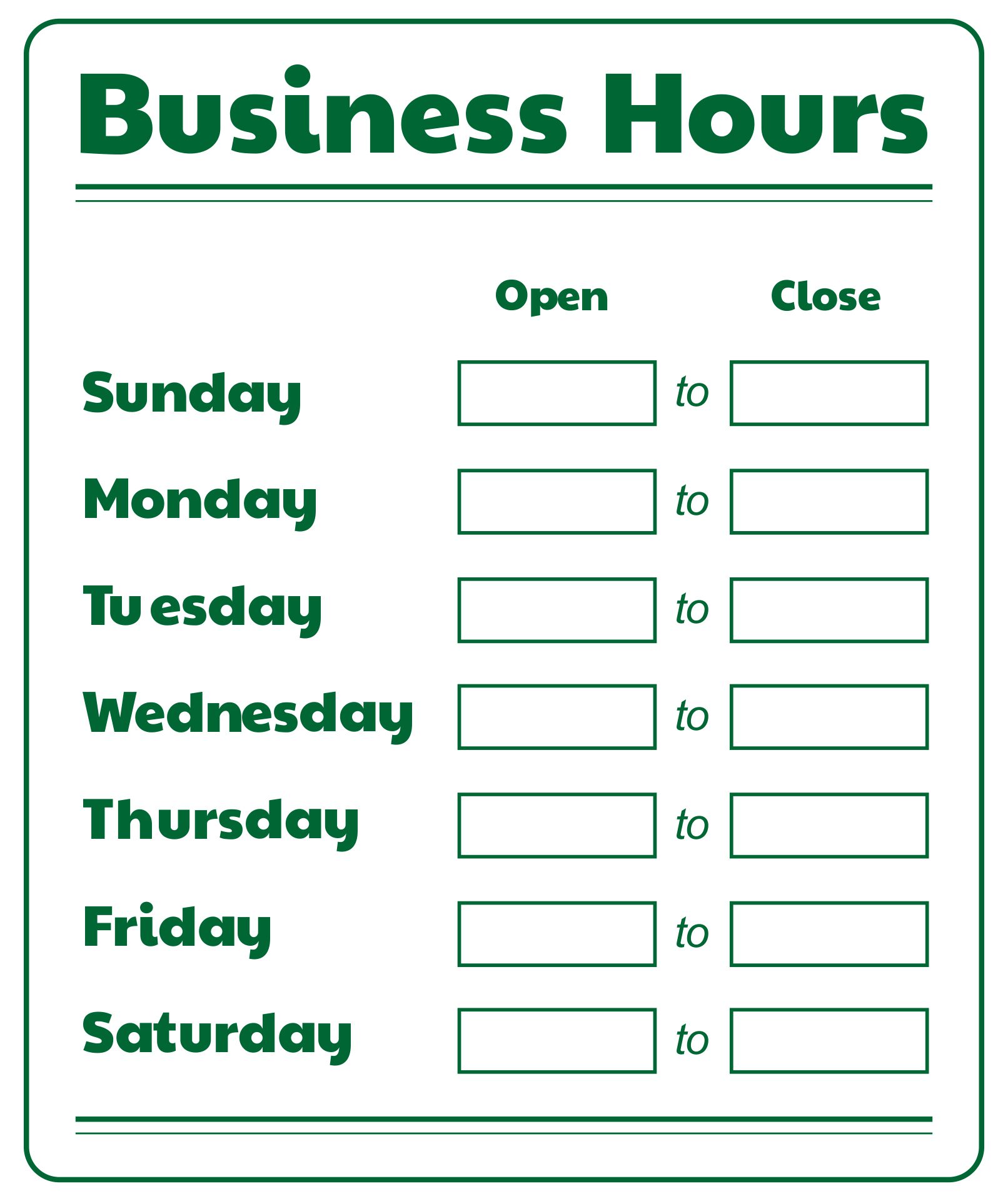
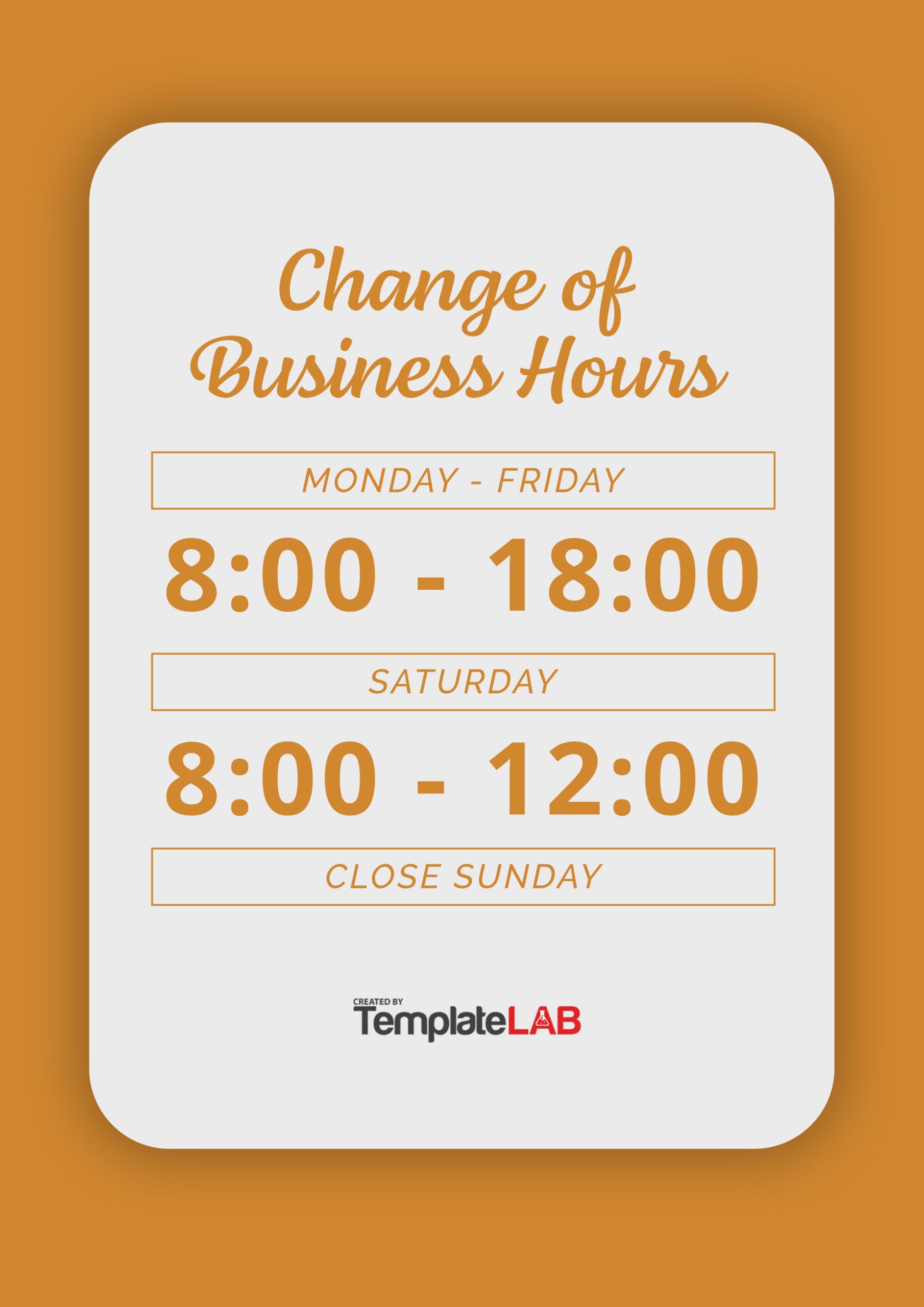
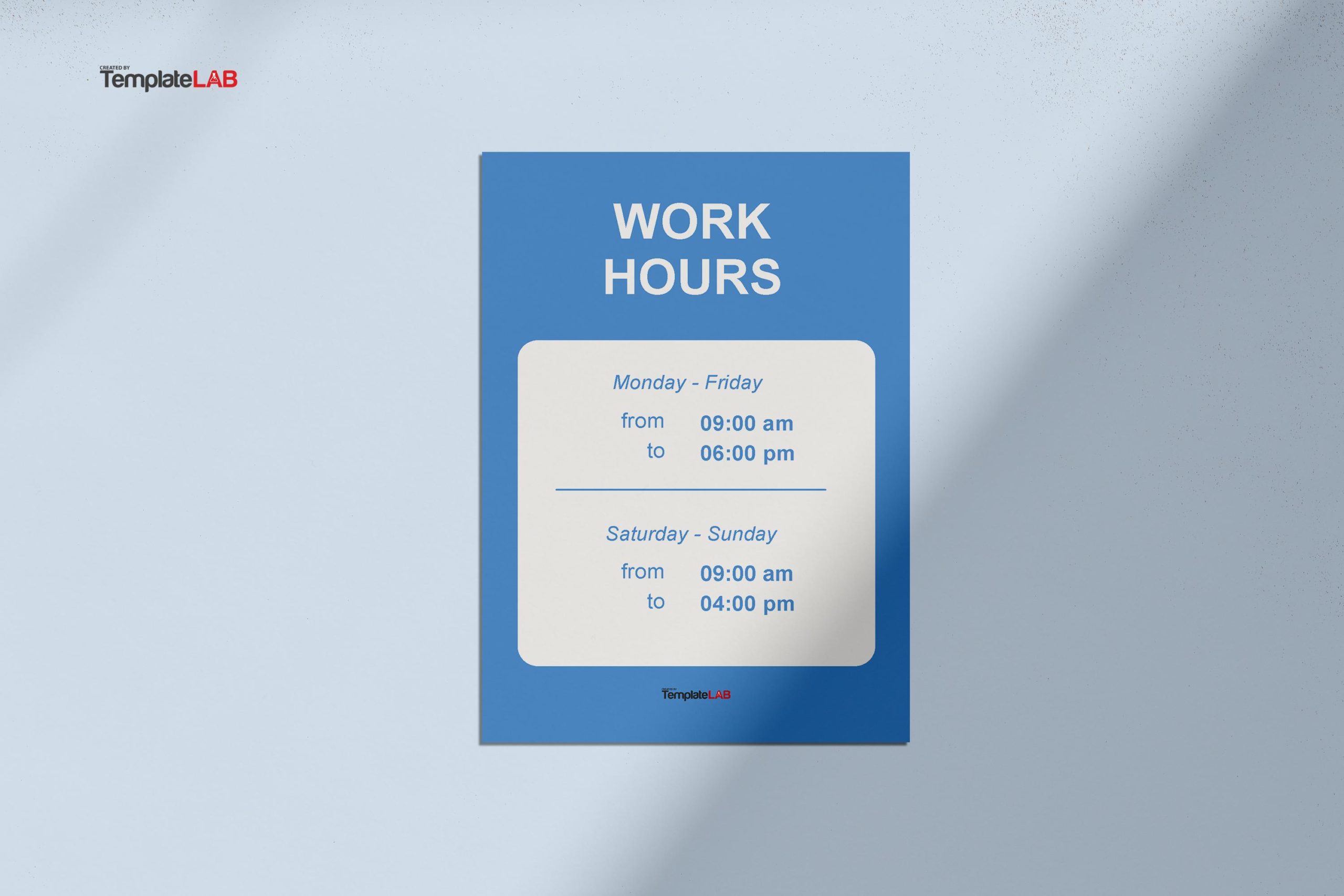
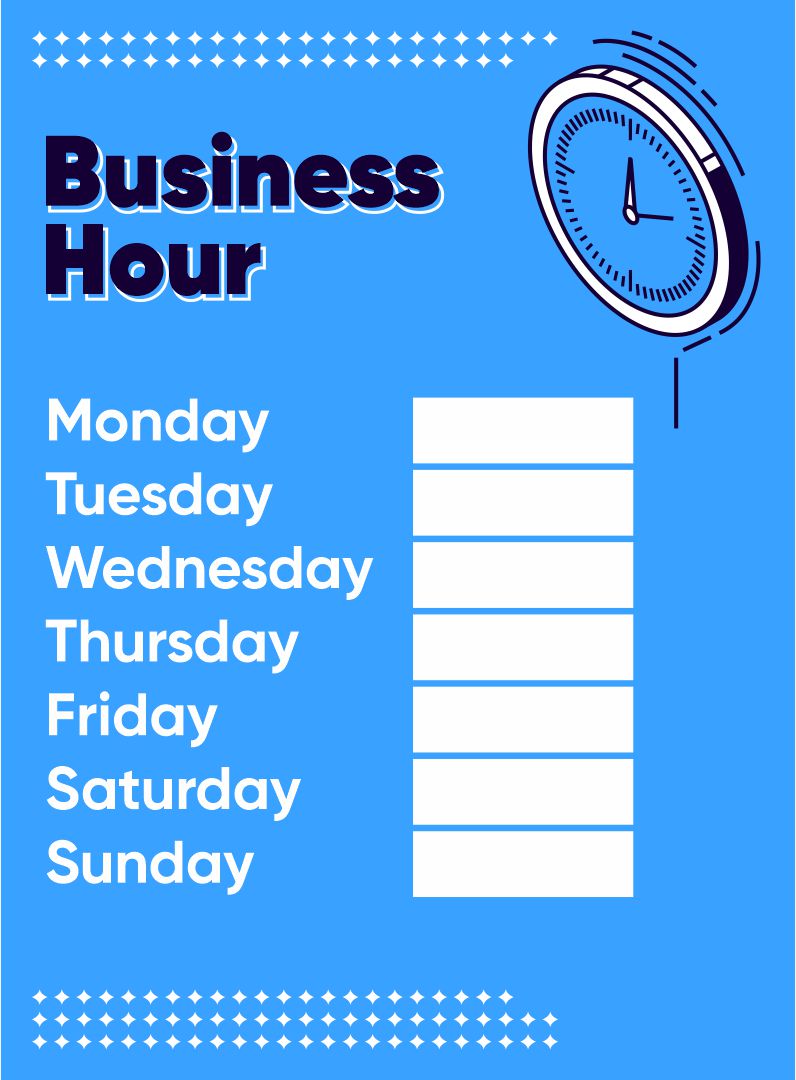
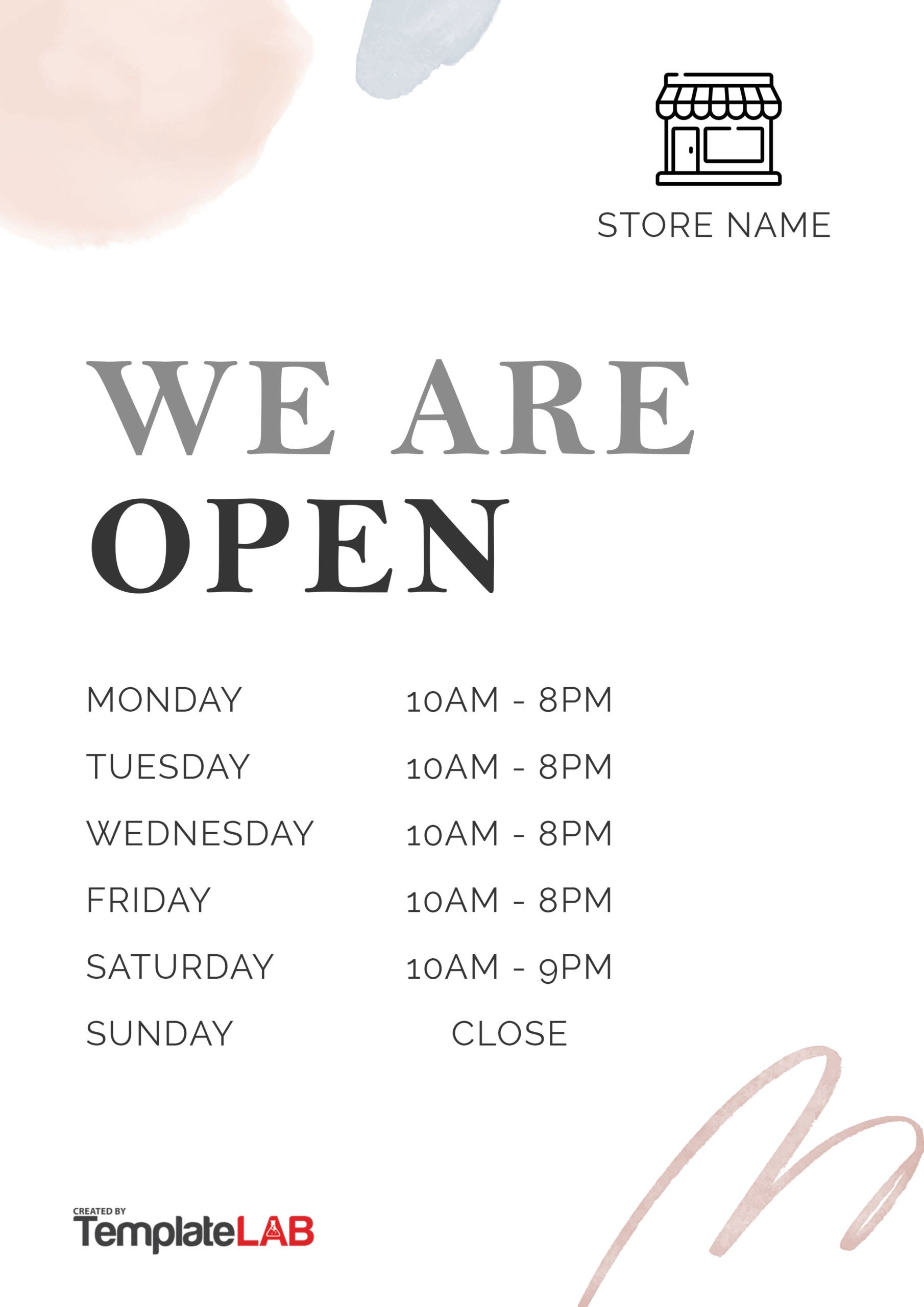
Business Hours Template Word is an indispensable tool for entrepreneurs, small business owners, and professionals looking to project a polished, organized image while efficiently communicating their operating times. By leveraging a well‑crafted template, you eliminate the guesswork of manual formatting, maintain consistency across communications, and ensure that every stakeholder—from customers to suppliers—knows exactly when your services are available.
Why a Business Hours Template Matters
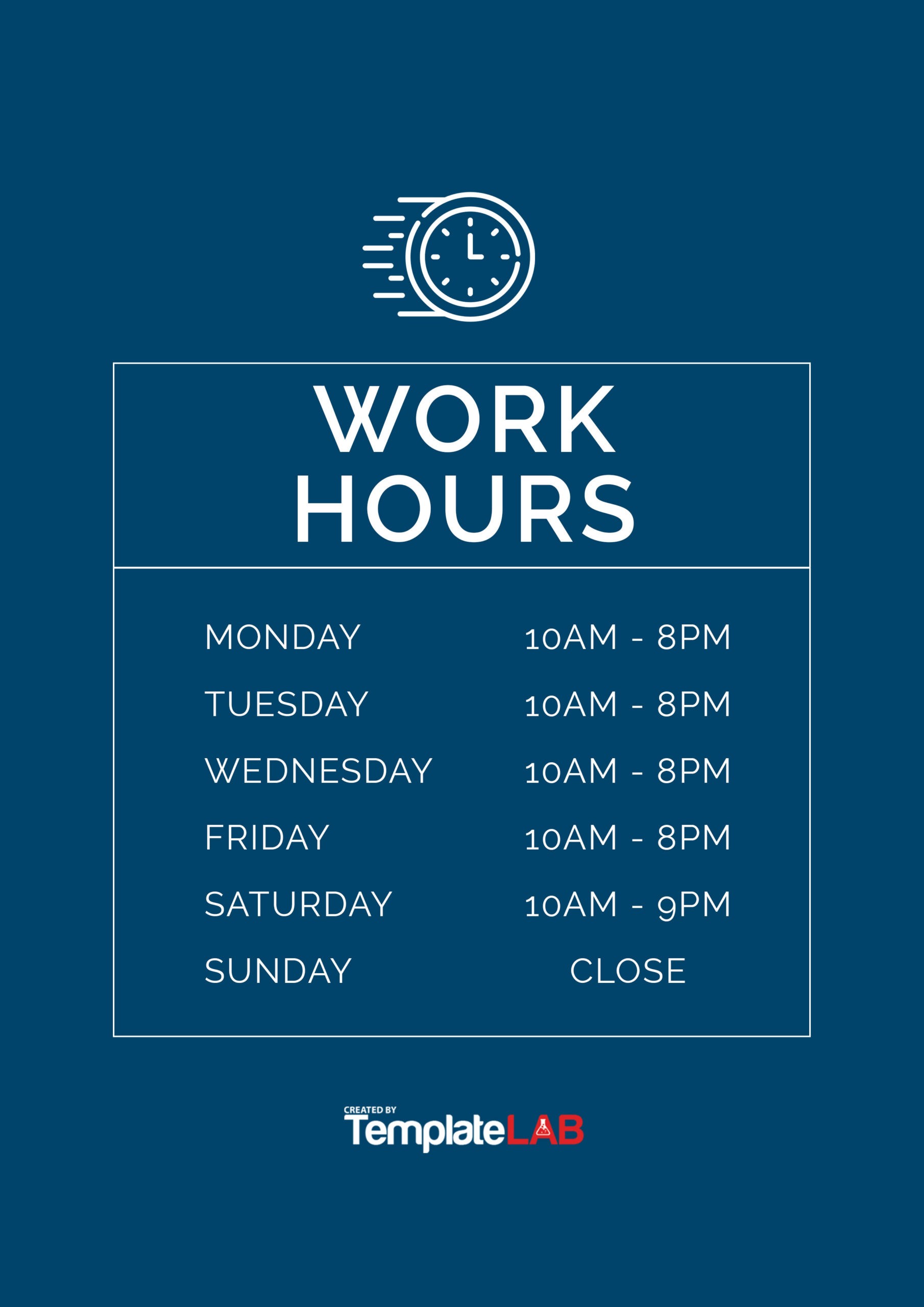
A clear display of operating hours reduces missed appointments, streamlines staff scheduling, and enhances customer trust. A professionally styled template can be incorporated into emails, websites, print flyers, and social media graphics. When visitors see a tidy, easy‑to‑read timetable, they feel confident that the business values their time and is organized.
Boosting First‑Impression Credibility
Customers often evaluate a company’s professionalism based on how effortlessly they can locate basic information. A cluttered or inconsistent schedule signals chaos, whereas a standardized Business Hours Template Word showcases a commitment to clarity.
Consistency Across Platforms
Whether it’s a PDF handout, a Word document for internal use, or a printable sign, a single template ensures every medium presents identical information. This consistency mitigates confusion, especially during seasonal adjustments or holiday closures.
Key Features of an Effective Business Hours Template

While the core idea remains simple—display days and times—the design nuances can significantly affect readability and aesthetic appeal. A top‑notch template typically includes:
- Clear Section Headings for weekdays, weekends, and special dates.
- Visual Hierarchy using bold fonts for days and lighter tones for times.
- Customizable Columns for multiple locations or branches.
- Optional Icons indicating closed days, special events, or holiday notices.
- Print‑ready Settings with bleed lines and margin controls for signage.
Step‑by‑Step Guide to Building Your Own Word Template
1. Set Up the Document Layout
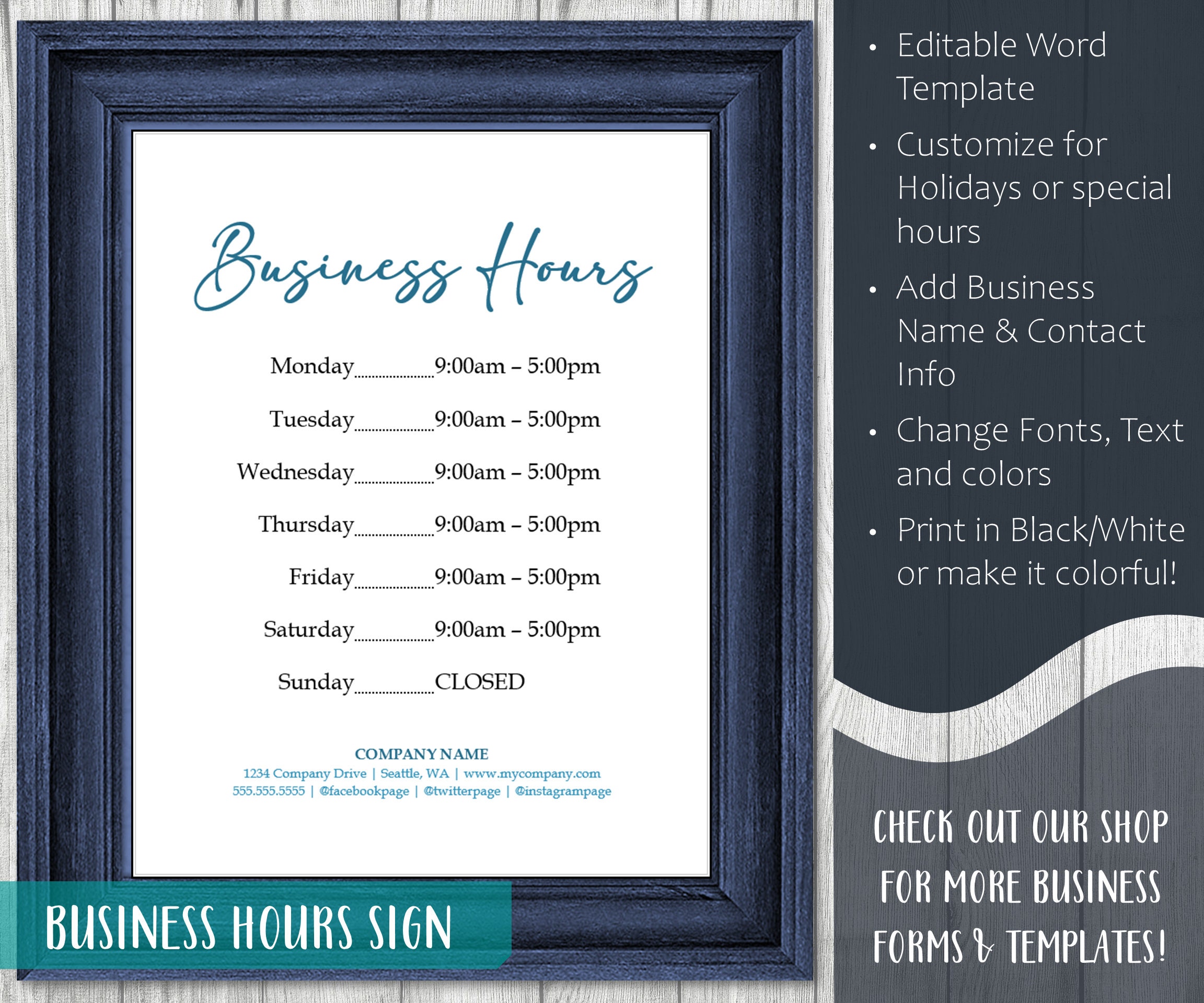
Open a new Word document and set the page size to match your intended use—8.5″ × 11″ for flyers or 8″ × 10″ for signs. Adjust the margins to 0.5″ to maximize space.
2. Create a Table for Structure
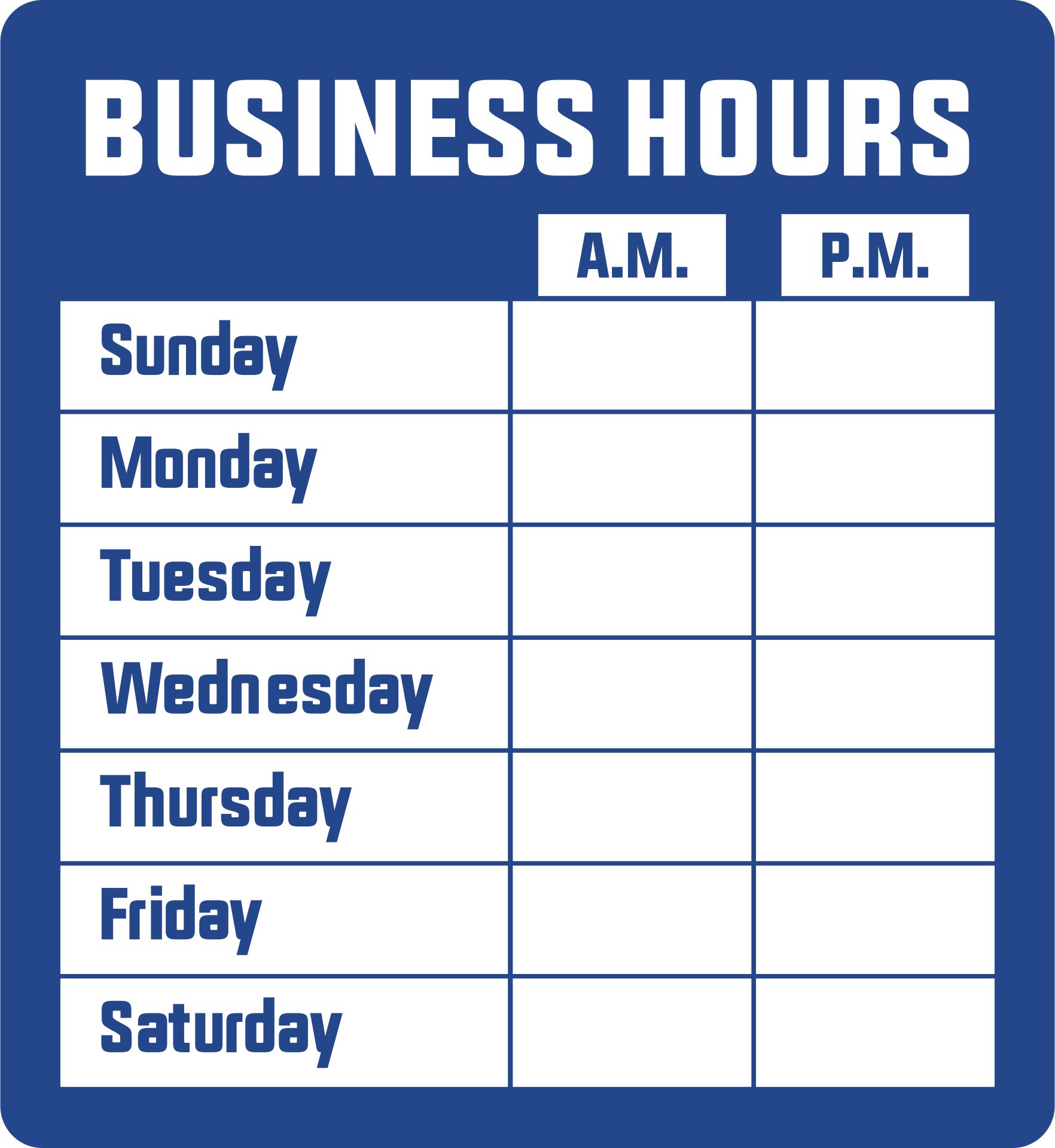
Insert a two‑column table: the left column for days and the right for hours. This grid allows easy alignment and future edits. Remove default borders and replace them with subtle lines or shading for a clean look.
3. Choose a Font Pairing
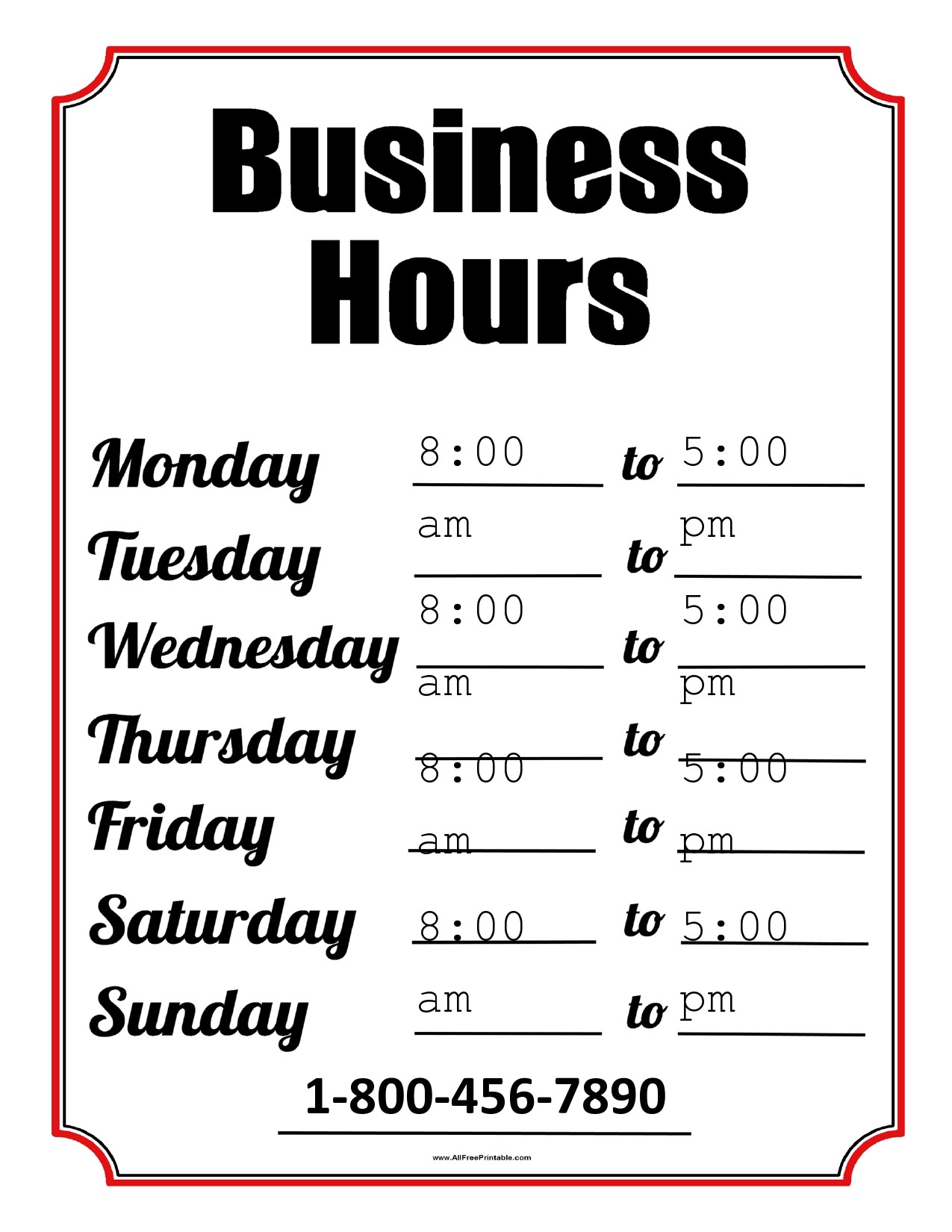
Select a sans‑serif font for headings (e.g., Calibri or Arial) and a serif or monospaced font for times (e.g., Times New Roman or Consolas). Keep font sizes consistent—16‑18 pt for days and 12‑14 pt for times.
4. Add Branding Elements
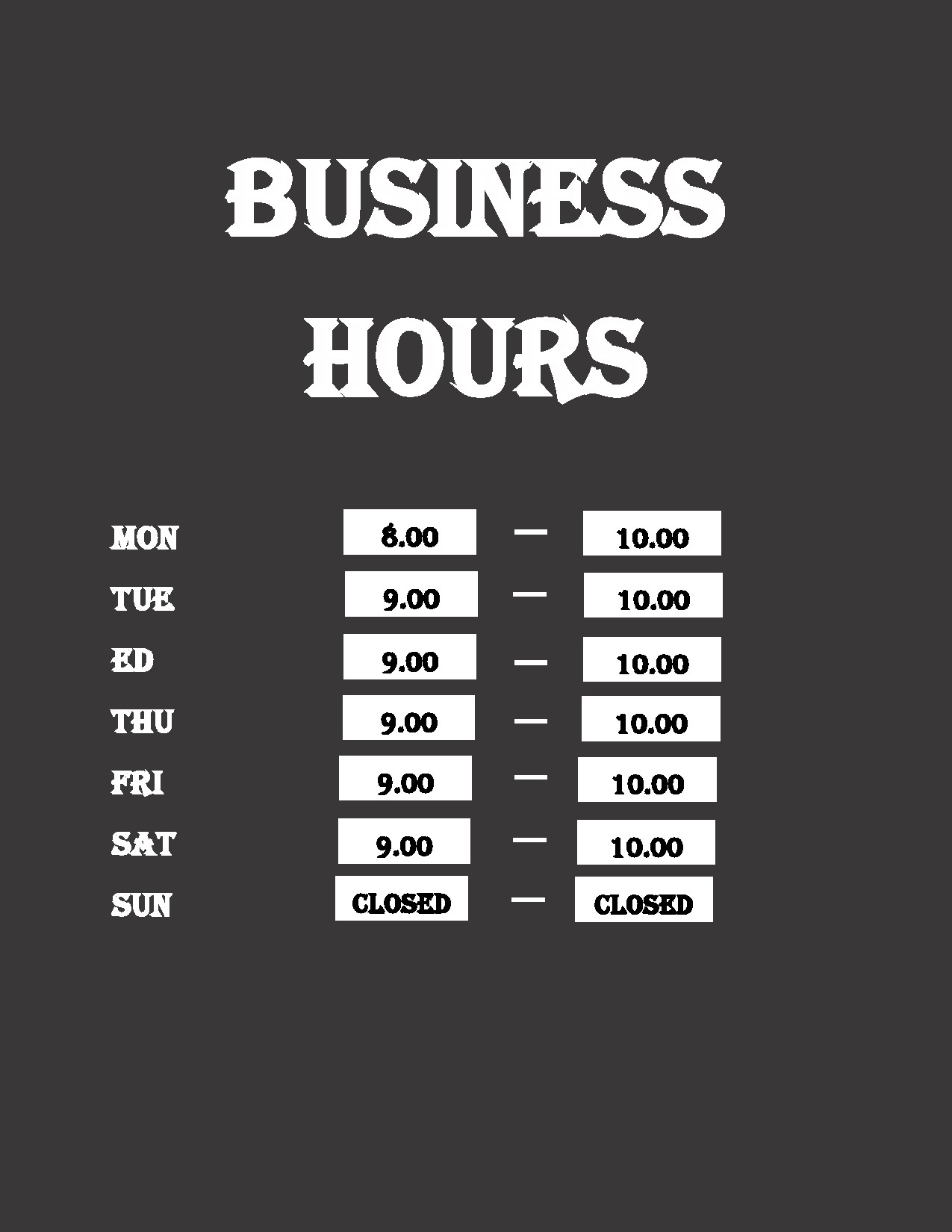
Incorporate your logo at the top center or top left corner. Use your brand’s color palette for headers and accents. If you use a gradient background, ensure text contrast remains high for legibility.
5. Populate Operating Hours
Enter standard weekday hours, weekend variations, and any holiday closures. For example:
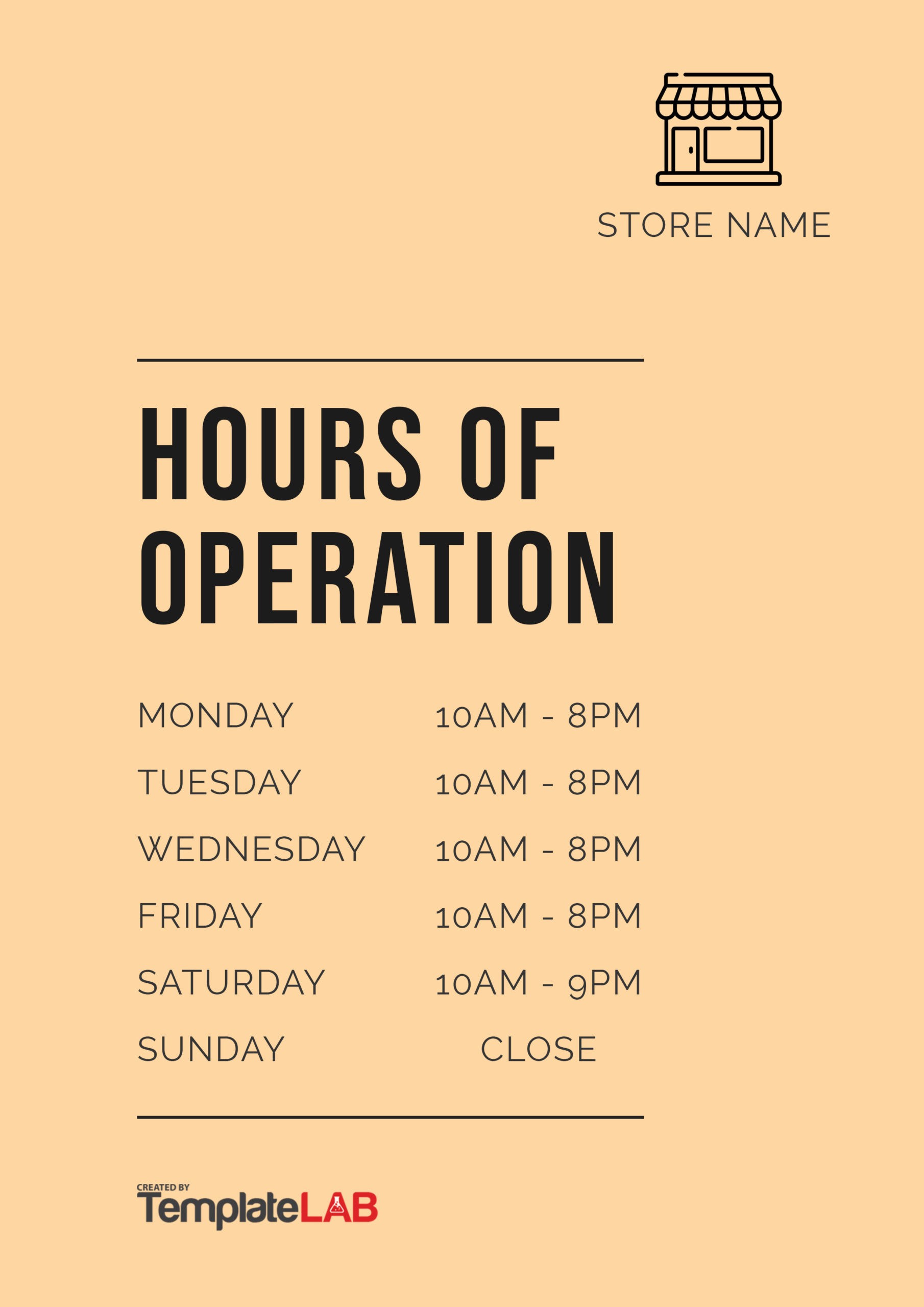
- Monday – Friday: 9:00 AM – 7:00 PM
- Saturday: 10:00 AM – 4:00 PM
- Sunday: Closed
When you anticipate seasonal changes, add a separate row labeled “Summer Hours” with a note that the schedule will revert on a specified date.
6. Utilize Conditional Formatting
Highlight special days—such as “Early Close” or “Extended Hours”—by changing the text color or adding icons. This visual cue informs customers of deviations without cluttering the template.
7. Review and Print
Print a test page to confirm that fonts are not distorted and that spacing appears balanced. Adjust line spacing and cell padding as needed before finalizing.
Real‑World Applications of Business Hours Templates
Retail Stores
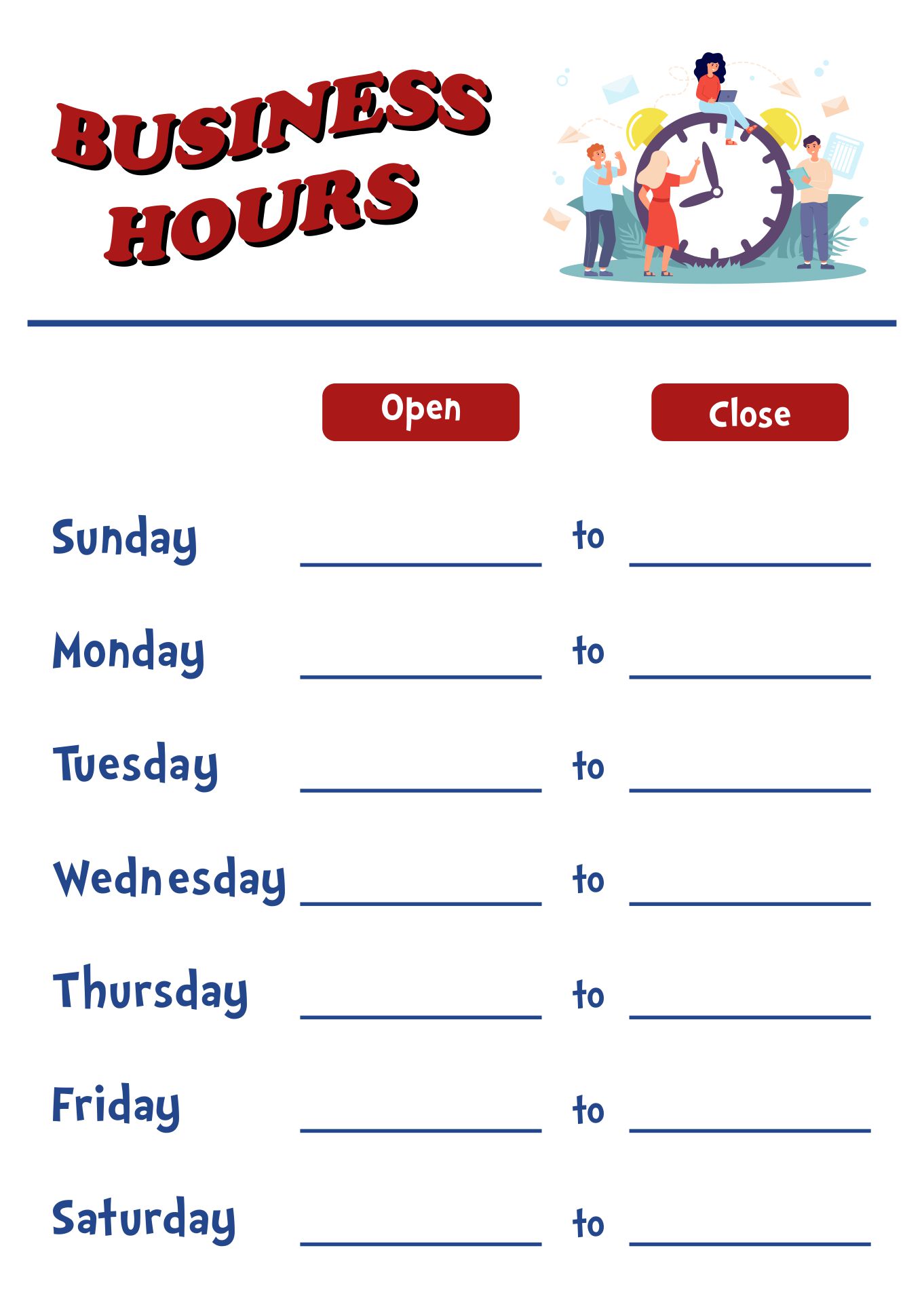
A boutique shop can use the template on its front signage, website, and email newsletter. By aligning all platforms, customers always receive the same, accurate timing information, reducing phone inquiries.
Service‑Based Businesses
Consultants, law firms, and medical practices benefit from a concise schedule that lists not only operating hours but also appointment availability. For instance, a dental office may display “Available for emergencies after 5:00 PM.”
Educational Institutions
Schools and tutoring centers can adapt the template to show different hours for different programs. A university department may need a separate row for “Student Service Hours” during exam periods.
Restaurants and Cafés
Beyond standard hours, food establishments often need to indicate “Special Menu Days” or “Outdoor Seating Open” times. A clear, color‑coded template communicates these nuances effectively.
Integrating Templates with Digital Platforms
Embedding in Email Signatures
Convert the Word template into a PNG or PDF, then embed it in your email signature. Ensure the image is compressed to 150–200 KB to maintain load speed.
Adding to Website Footers
Embed the timetable as a table or list in the footer of your site. Using CSS, you can make it responsive so it adjusts gracefully on mobile devices.
Social Media Story Templates
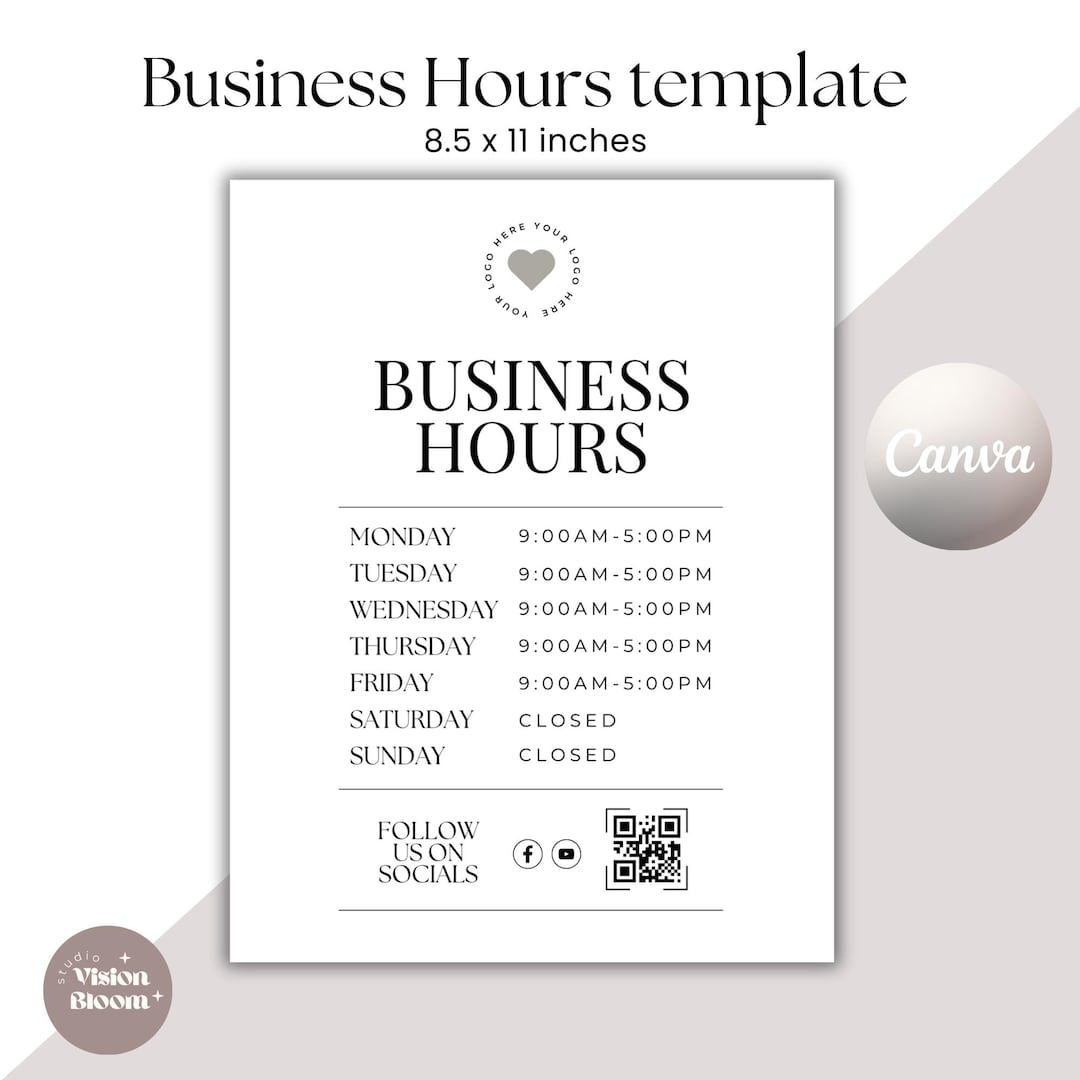
Repurpose the Word layout in graphic design tools such as Canva. This allows you to post weekly updates or holiday notices without re‑creating the design from scratch.
Optimizing Your Template for Search Engine Visibility
Keyword Placement
Include primary keywords—such as “business hours template word,” “editable office hours sheet,” and “printable business hours”—in the document title, heading tags, and introductory paragraph.
Alt Text for Images
If you upload the template as an image, add descriptive alt text like “Editable business hours template in Word format.” This improves accessibility and SEO.
Metadata and File Naming
Name the file “business-hours-template-word.docx” or “business-hours-signature-template.pdf.” Such clear naming signals relevance to search engines and users alike.
Tips for Maintaining and Updating Your Business Hours
Version Control
Store the template in a shared folder (e.g., Google Drive or SharePoint) with version numbering. This prevents multiple staff members from editing different copies and ensures everyone uses the latest schedule.
Automated Updates with Mail Merge
Use Word’s mail merge feature to automatically populate dates and times into bulk emails or printed flyers. This eliminates manual entry errors.
Feedback Loop
After implementing the template, ask customers and staff for feedback on readability. Small tweaks—like increasing font size or simplifying color choices—can enhance clarity.
Common Pitfalls and How to Avoid Them

Overcomplicating the Design
A template that uses too many fonts or colors may appear chaotic. Stick to one or two brand colors and a maximum of three font families.
Ignoring Accessibility Standards
Ensure text contrast ratios meet WCAG guidelines. Use high contrast between background and text (e.g., dark text on a light background) and avoid color‑only cues for those with color blindness.
Failing to Update During Seasonal Changes
Set reminders to revise the template at the start of each season or holiday period. An outdated schedule can lead to customer frustration and missed revenue.
Conclusion
Employing a well‑designed Business Hours Template Word empowers your organization to communicate operating times with precision, professionalism, and consistency. From setting up the layout and choosing the right fonts to integrating the template across digital and physical channels, the steps outlined above transform a simple timetable into a strategic asset. By continually refining the design, keeping it accessible, and aligning it with brand identity, you create a trustworthy touchpoint that customers rely on—thereby enhancing satisfaction, reducing administrative overhead, and ultimately driving better business outcomes.